About
The SecureVoIP Basic softphone app is free to use and pre-configured — just enter your number and password.
Note: You need a recent version of iOS. Older versions may not support this app.
Installation
1
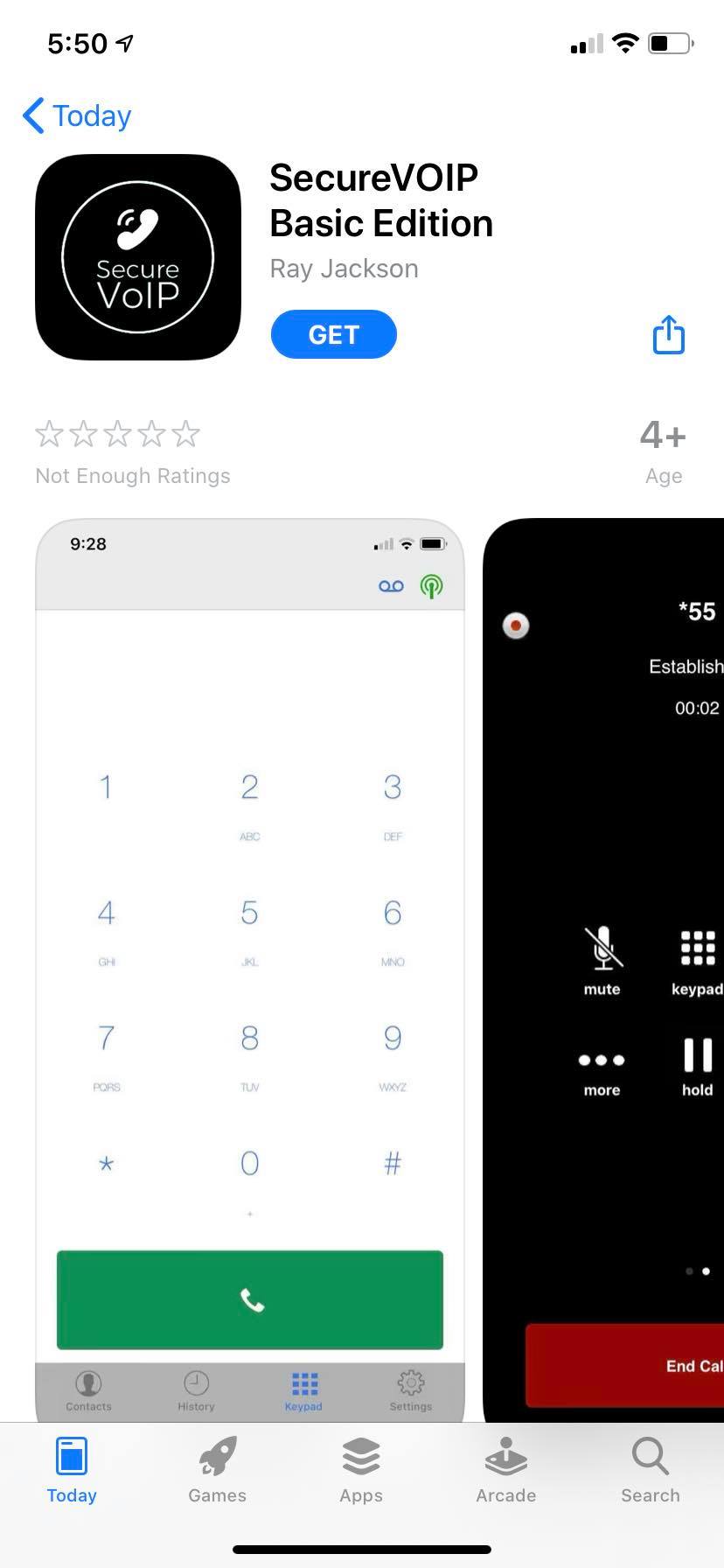
Go to the App Store and search for "SecureVOIP Basic", or tap here to download.
2
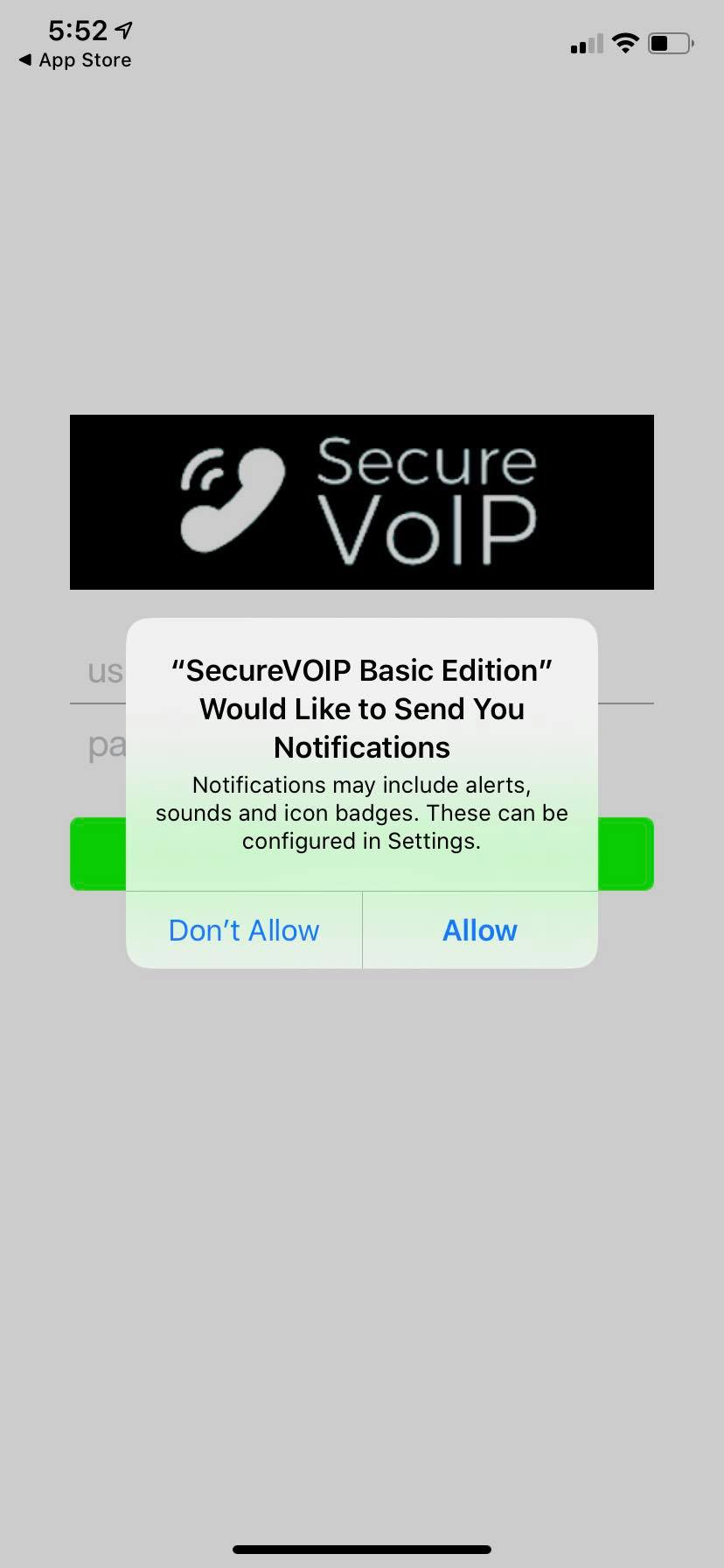
Install the app and tap "Allow" to any permission prompts (notifications, etc).
3
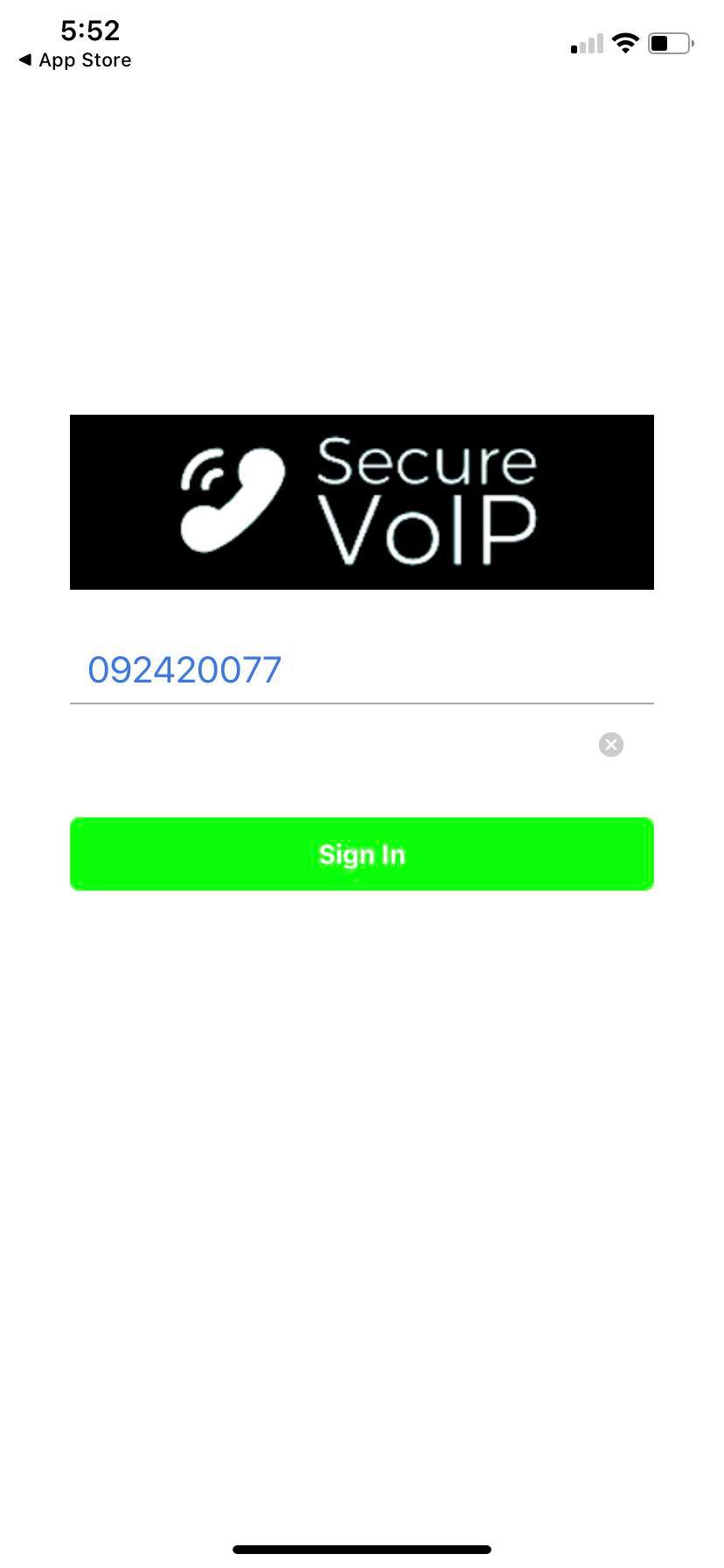
Enter your phone number and password. Do NOT use your account number or email — use the phone/extension login number (e.g. 092345678).
4
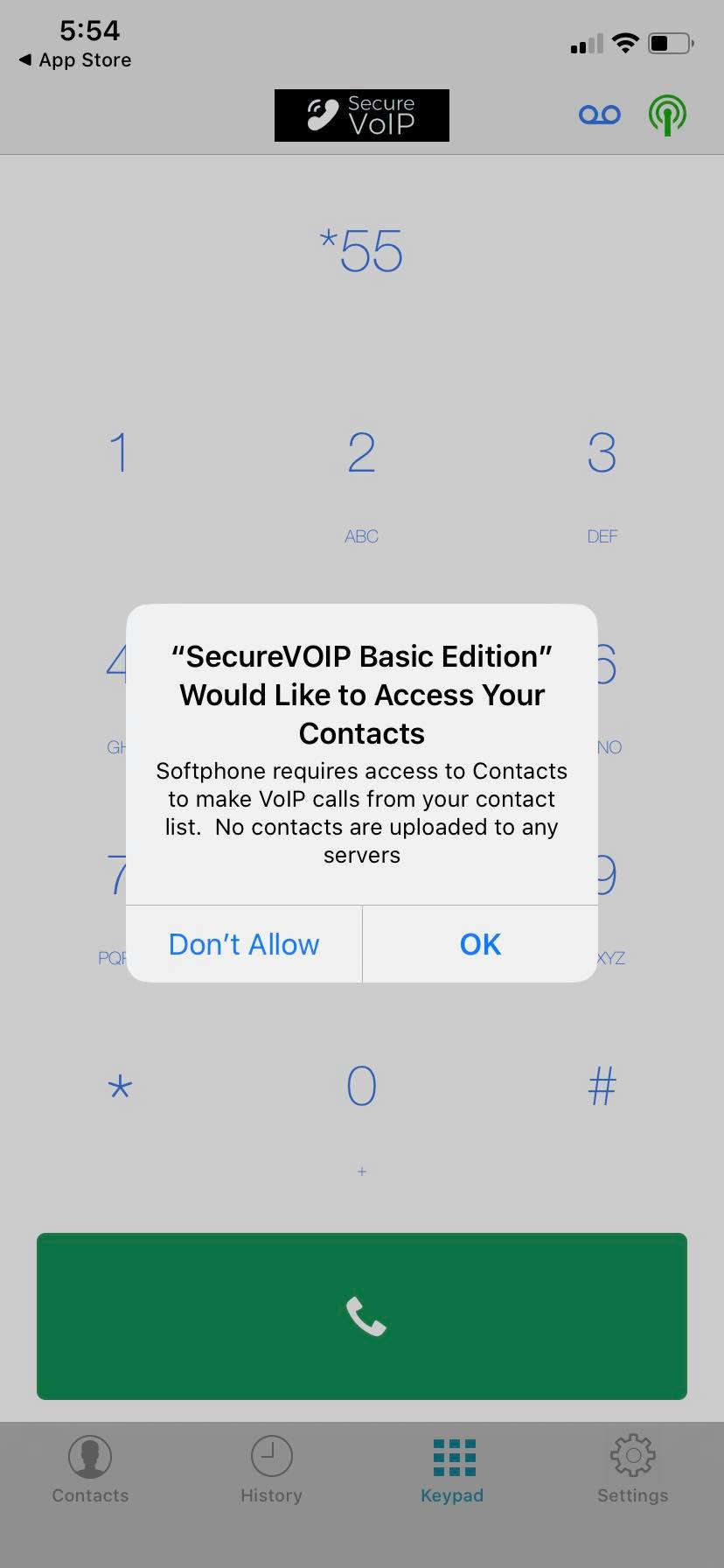
Allow access to your contacts.
5
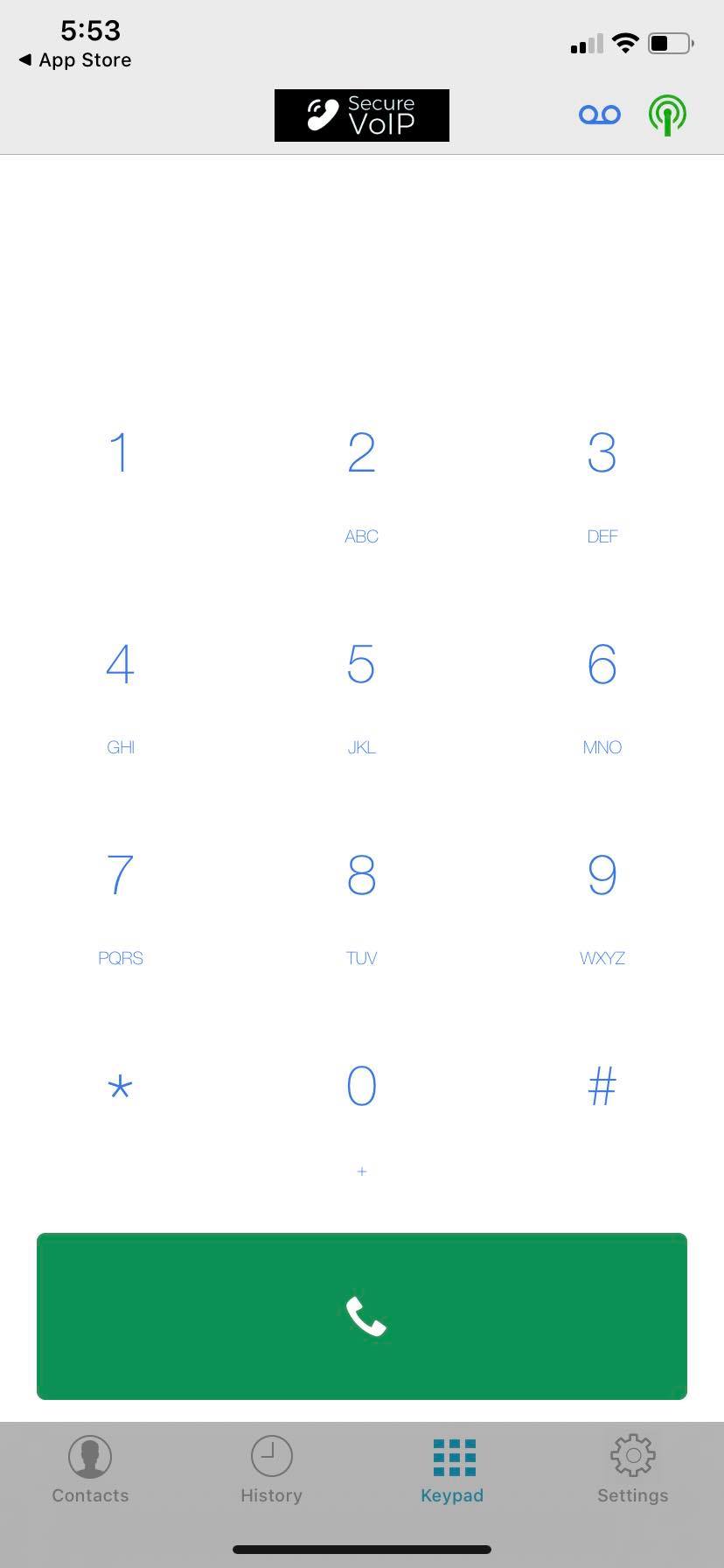
You should now see the dialpad and be ready to make calls.
Settings & Battery
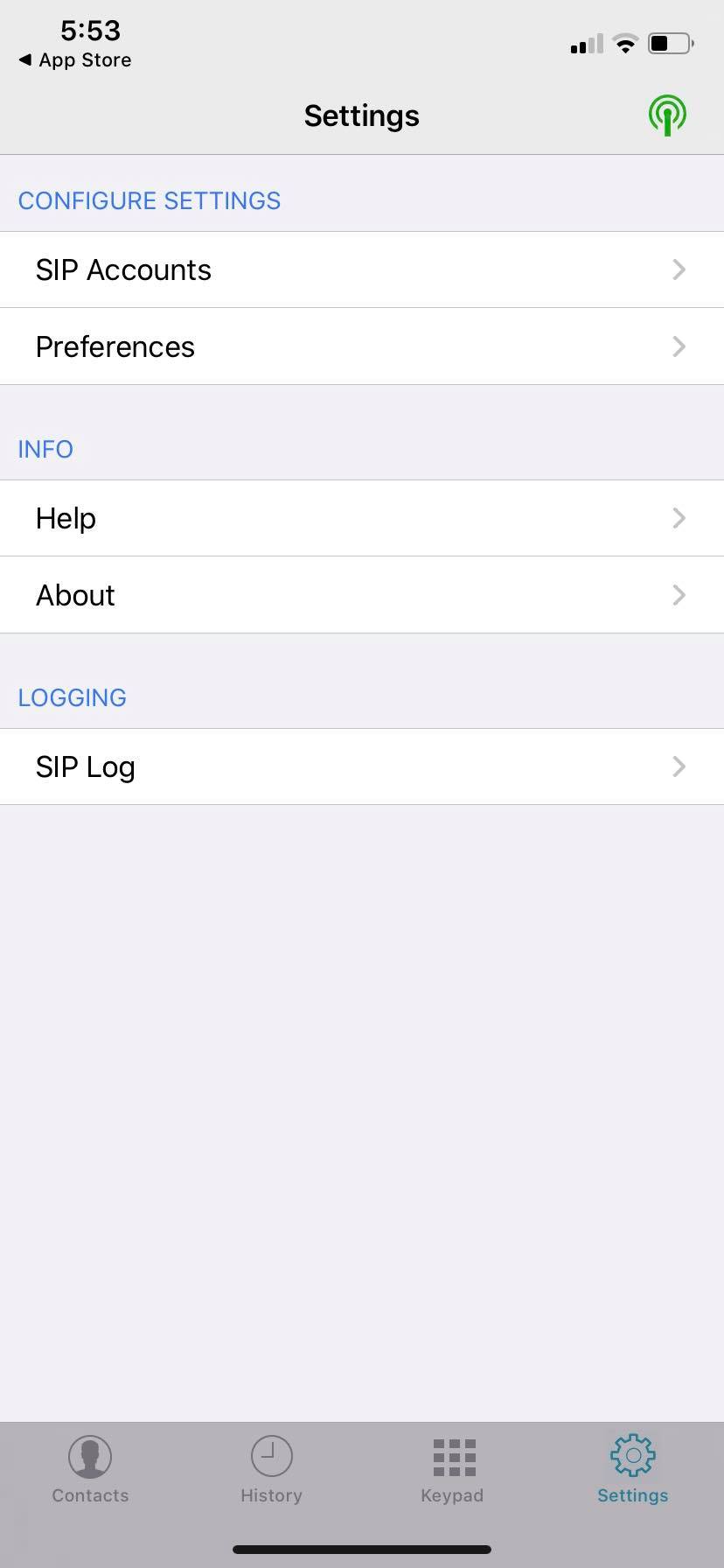
Tap the Settings icon (bottom right) then select Preferences.
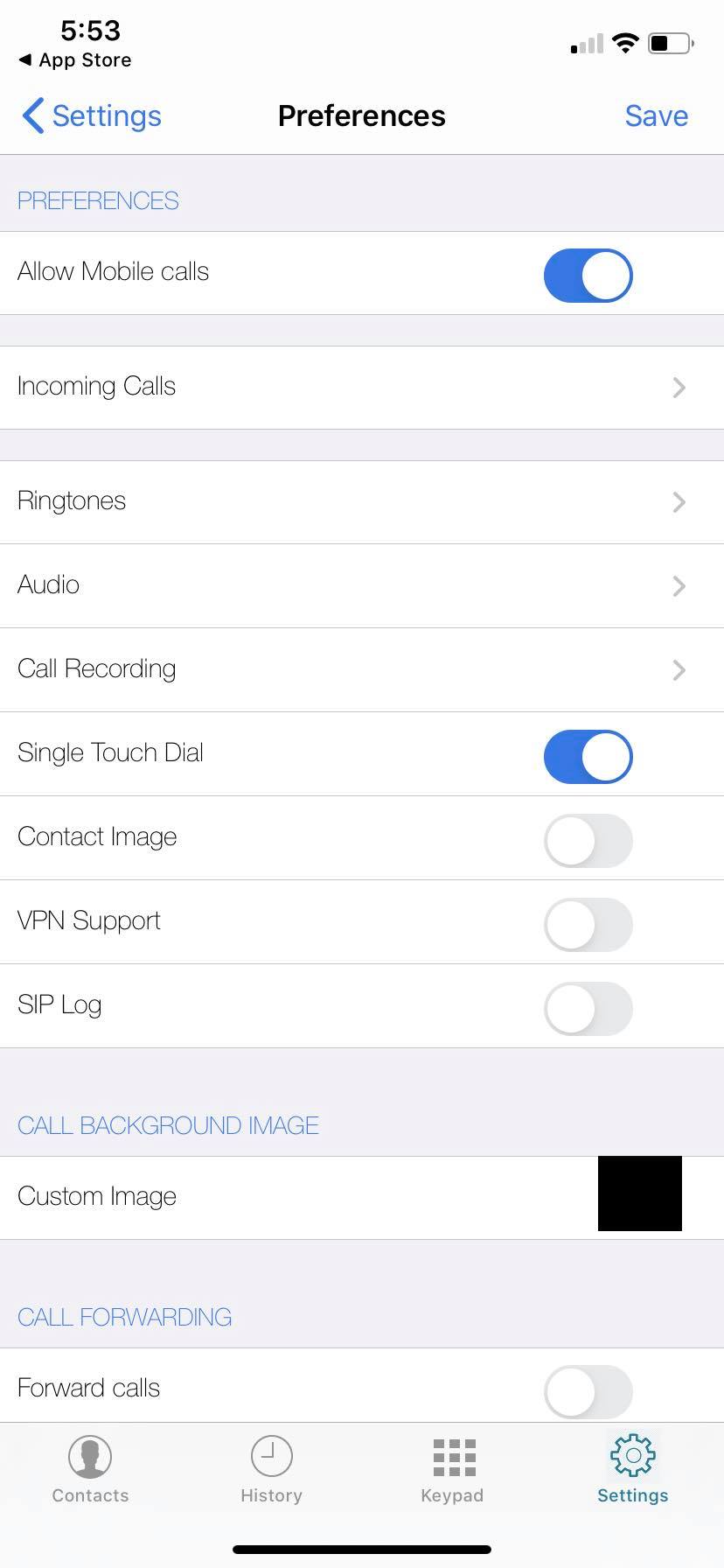
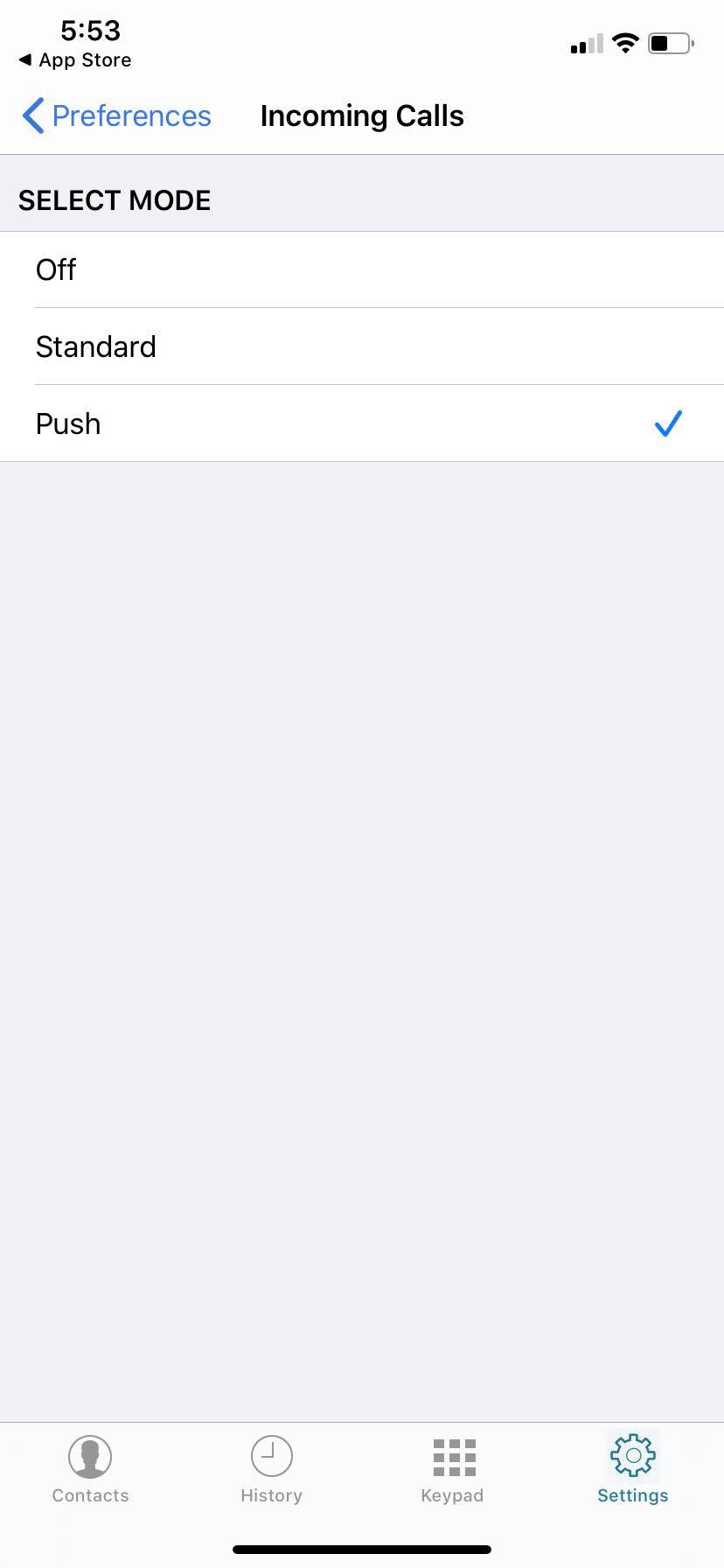
By default the app stays open in the background for the fastest call pickup. To save battery, change Incoming Calls from "Standard" to "Push".
Making Calls
Use the dialpad to dial. When prompted, allow microphone access.
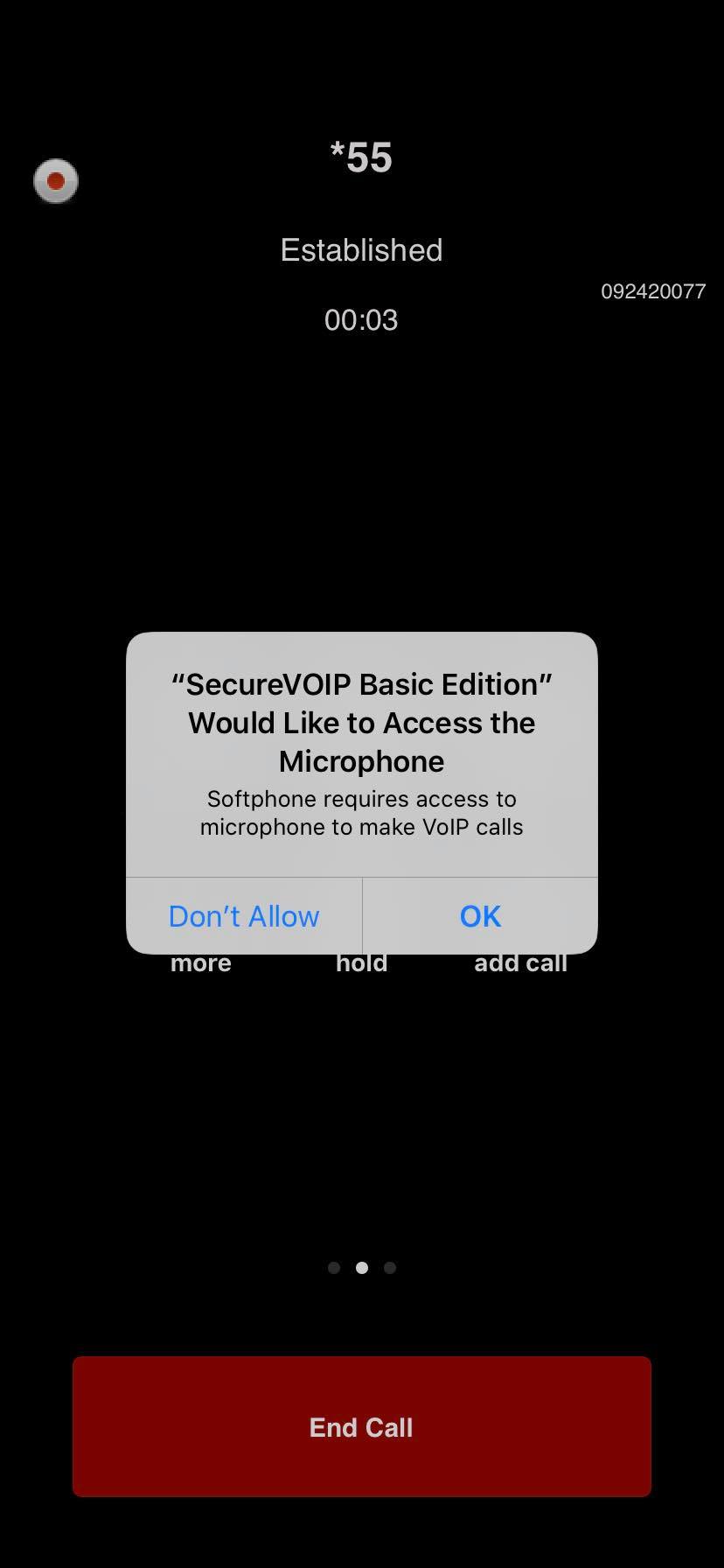
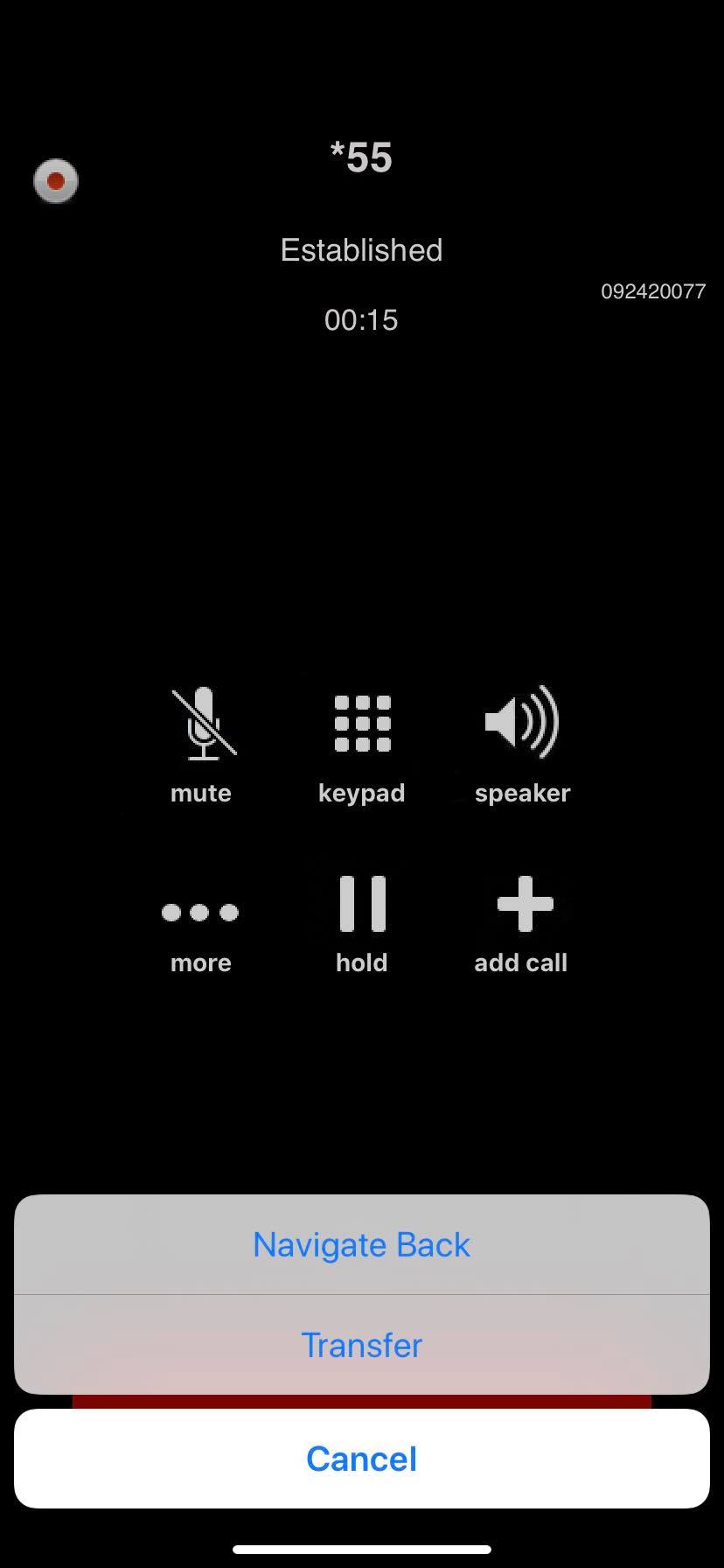
During a call you have mute, speakerphone, dialpad, hold, transfer (+), and more (...).
Get In Touch
Contact H3llo.
Our phones are answered 24/7. Give us a call or fill out the form and we'll get back to you promptly.
Head Office
34 Howell Road, Paraparaumu Beach, Paraparaumu 5032
Business Hours
Mon–Fri 8am–5pm (Phones 24/7)